1
Choose
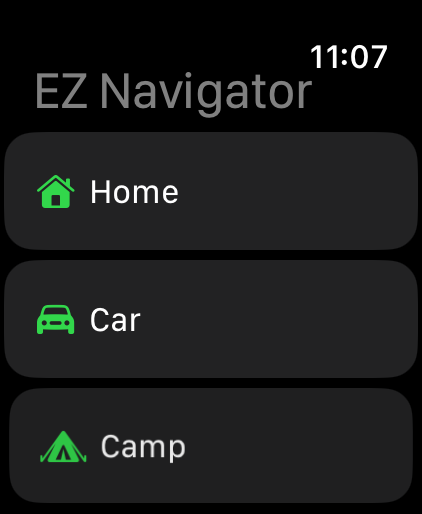
Select Home, Car, or Camp on Apple Watch.
iPhone + Apple Watch
Set your destination on iPhone, send it to Apple Watch, and keep a clear sense of direction from your wrist.
Contact support01
How it works
Set up on iPhone
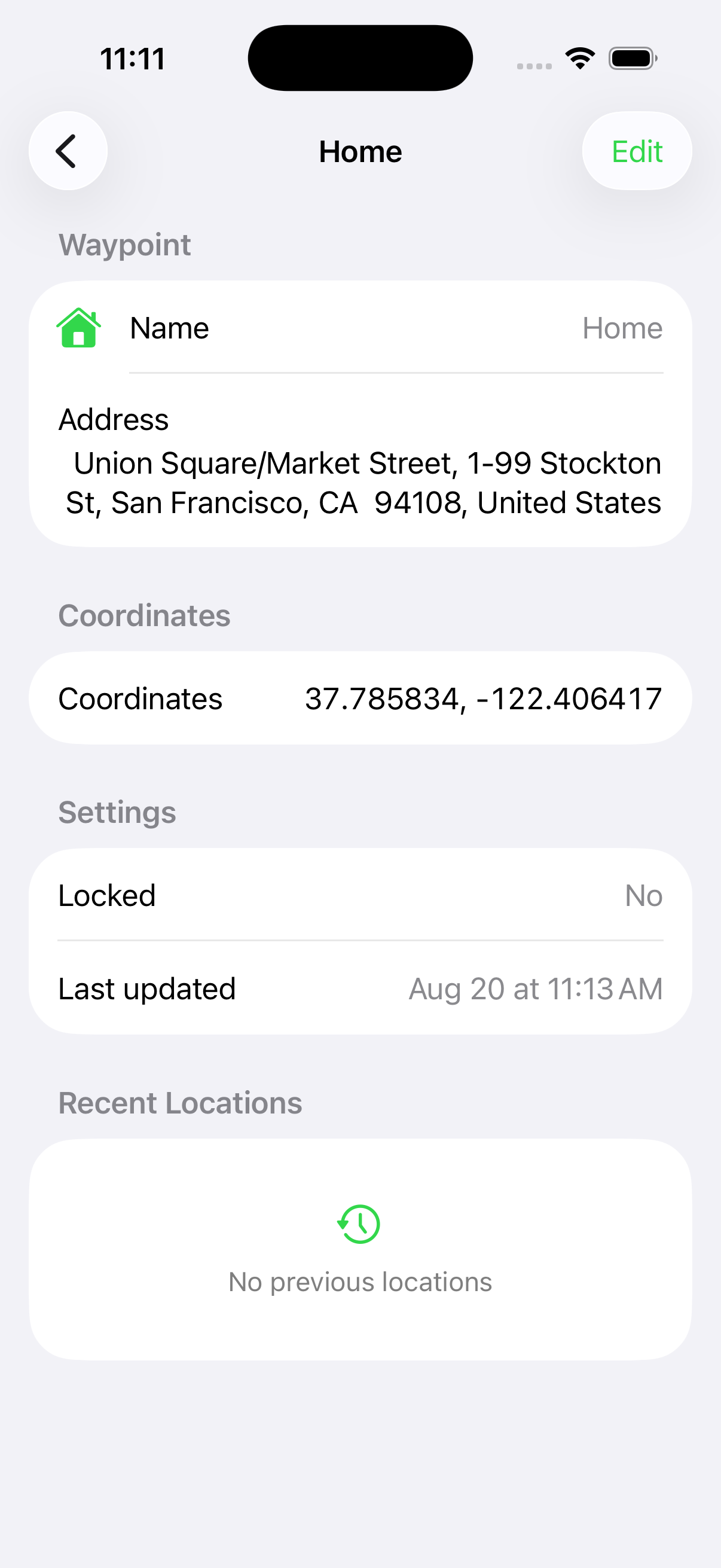
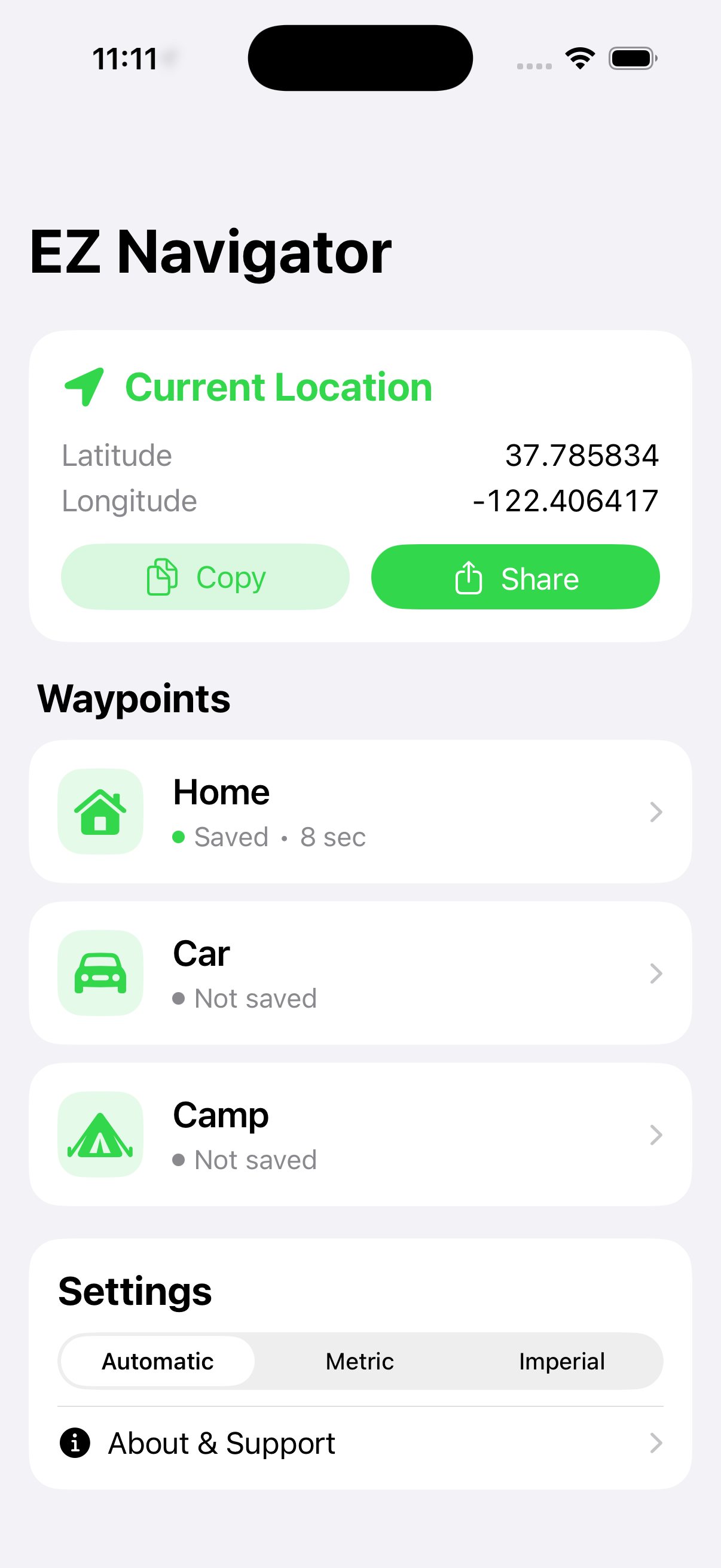
Use Home, Car, and Camp for the locations that matter. Review the address and coordinates on iPhone, or update a waypoint with your current location.
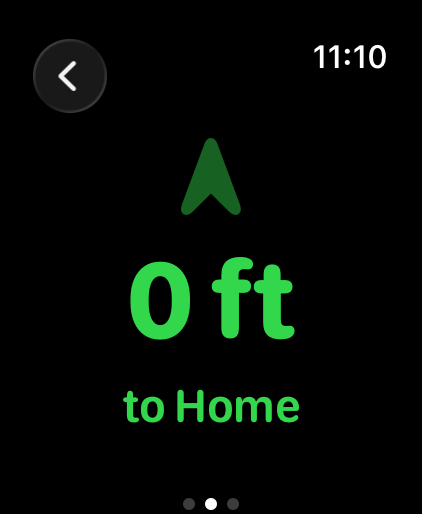
Select Home, Car, or Camp on Apple Watch.
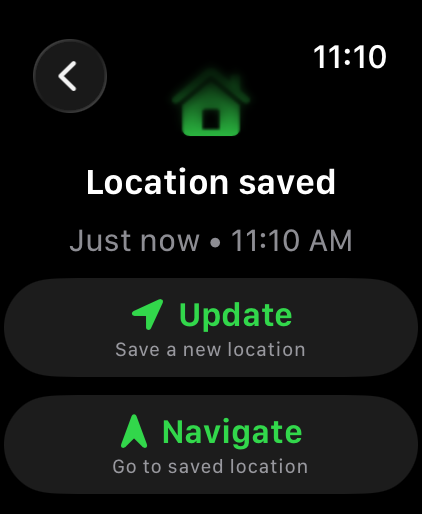
Update the waypoint to save where you are.
Follow the arrow and distance back to it.
02
Support
EZ Navigator needs location access to show your position and direction. If access was denied, open iPhone Settings, find EZ Navigator, and allow location access while using the app.
Keep the iPhone and Apple Watch nearby, confirm Bluetooth is on, and check that both devices show the expected app version.
Tell us what happened and include the version shown in the app.
eznavigator.support@gmail.com03
Privacy policy
With your permission, EZ Navigator uses precise location, heading, and saved destination information to calculate and display direction and distance. The app may exchange this information between your paired iPhone and Apple Watch so its navigation features work across both devices.
Navigation information is used to provide the features you request. EZ Navigator does not operate an advertising network, sell personal information, or use your location for targeted advertising. Apple system services, including location and mapping services, may process requests under Apple's terms and privacy policy.
You control location permission in iPhone Settings. Disabling permission prevents location-dependent navigation features from working. You can remove saved information using controls provided in the app or by deleting the app.
For privacy questions, email eznavigator.support@gmail.com.
Safety first
EZ Navigator is a navigation aid. Remain aware of your surroundings, conditions, terrain, and changing weather. Do not rely on the app as your only means of navigation or emergency communication. Always carry an appropriate backup and follow local guidance.